
Starting with version 5.7.05, the DataList will allow you to define a sort criterion that is independent of the display. I would like to discuss this new feature in more detail in my article. The release of version 5.7.05 is currently scheduled for October 23, 2013.
New Features
The first change concerns the DataList column objects. These have been extended to include the property wpClmTypeSort. This property is used to specify the sort type for the corresponding column. The following types can be selected:
_TypeNone corresponds to sorting the list based on the displayed data. This is the default value.
The types _TypeAlpha, _TypeBool, _TypeByte, _TypeInt, _TypeBigInt, _TypeFloat, _TypeDecimal, _TypeDate, _TypeTime, and _TypeWord are sorted according to the specified data type.
In addition, the commands WinLstCellGet and WinLstCellSet now support a new mode. The _WinLstDatModeSortInfo option can be used to set or retrieve the sort value of a row.
When setting the wpClmTypeSort property for a column, make sure that each row is assigned a corresponding sort value. Otherwise, the sort result is undefined!
If wpClmTypeSort is to be set at runtime, the list must be empty. Columns created dynamically must not yet have been added to a list using WinAdd.
Sorting by multiple columns
By extending the DataList, it is possible to sort across multiple columns.
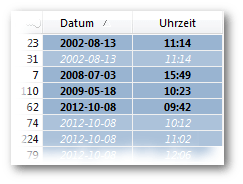
For example, in a list that includes a column for the date and another column for the time, you can sort the list by the timestamp of the date and time.
First, the column properties must be set. If this is done procedurally, the points described above must be observed. The “Date” column is sorted by timestamp. The “Time” column is not sorted.
// ...
{
  // ...

  // BigInt as the sort type (= timestamp)
  tColumnDate->wpClmTypeSort  # _TypeBigInt;
  tColumnDate->wpClmSortFlags # _WinClmSortFlagsAutoActive
  tColumnDate->wpClmSortImage # _WinClmSortImageKey;

  // Turn off sorting by time
  tColumnTime->wpClmTypeSort  # _TypeNone;
  tColumnTime->wpClmSortFlags # tColumnDate->wpClmSortFlags & ~_WinClmSortFlagsAutoActive;
  tColumnTime->wpClmSortImage # _WinClmSortImageNone;
}
In the next step, you must set the sort value for each row in the Date column. Note that the type of the sort criterion must match that of the wpClmTypeSort property.
// ...
{
  // ...
  // Create a timestamp
  tCaltime->vpDate # 18.10.2013;
  tCaltime->vpTime # 13:11:00;
  tTimeStamp       # CnvBC(tCaltime);  // BigInt-Zeitstempel

  //Set the sort value for the last row
  tDataList->WinLstCellSet(tTimeStamp, sColumnDate, _WinLstDatLineLast, _WinLstDatModeSortInfo);
}
We will provide an example related to this topic in the CodeLibrary.