

The concept of Windows services was introduced with Windows NT 3.5. These are programs that run in the background without requiring user login. They are usually started automatically when the operating system boots up and do not have a user interface. With the SOA service, we provide our developers with the ability to create their own programs as service applications.
Typically, service applications are designed so that access to the system’s local resources is sufficient for processing. However, depending on the task at hand, it may be necessary to access shared directories or network printers.
In principle, it is possible to access network resources even from within a Windows service. However, this requires changing the context in which the service runs. By default, services in Windows—including the SOA service—are started under the “local system account”. As the account name suggests, it grants the service extensive privileges on the local computer. However, there is no access to the network in this context.
To do this, the service must log in using a user account that has the necessary permissions. The service settings can be accessed via Control Panel -> Administrative Tools -> Services. Alternatively, you can launch the management console via the Run dialog by entering “services.msc”. After selecting the “conzept 16 SOA Service” service, the desired user account can be specified on the “Log On” tab. Once the change has been made, the service must be restarted.
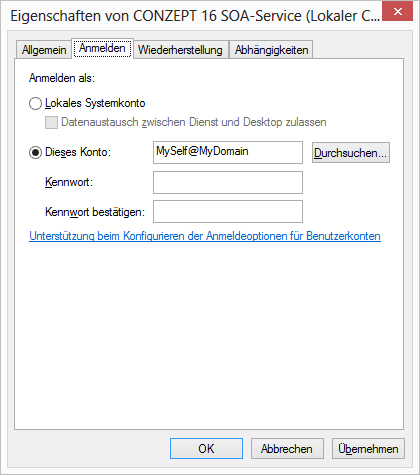 conzept 16 SOA Service
What should you keep in mind?
In practice, users are accustomed to accessing shared folders via a network drive. However, network drives are not available to a Windows service. Instead, access to the shares must be established using the UNC (Universal Naming Convention) format ().
Example:
// Creating a file
FsiOpen('\\MyServer\MyShare\Documents\MyFile.txt',_FsiStdWrite)
When reinstalling the SOA service, the settings related to login credentials are lost because the service is set up using the default account (“Local System Account”). This also occurs when upgrading to a higher major release of the SOA service, as the existing version is removed during the upgrade. Ideally, precautions should be taken in the program to detect a change in the account. The account name can be determined using the conzept 16 function UserInfo() and the option _UserSysAccount.
Example:
// Determine the user ID
tUserID # UserInfo(_UserCurrent);
// Determine user name
tUser   # UserInfo(_UserSysAccount,CnvIA(tUserID));
If the service is running under the local system account, UserInfo() returns the name “SYSTEM”.