
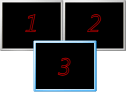
Nowadays, running two or more monitors on a single PC is no longer a problem—provided you have the right hardware. This article provides a brief overview of Windows display management and shows how information about monitor configuration can also be determined in conzept 16.
Introduction
In Windows, multiple screens can be conveniently configured in the Control Panel. Windows allows different modes when more than one monitor is connected:
- Extend display (extends the desktop across multiple screens)
- Duplicate display (displays the same desktop on multiple monitors)
In most cases, additional monitors are used to obtain more display space for running applications, which is why the “Extend Display” mode is probably more common.
Main screen
One screen is the so-called main screen. This displays the Windows logon screen. Furthermore, most applications open on this screen when they are started. However, the main screen has another feature.
Virtual screen
In “Extend Display” mode, Windows combines the relevant screens into a so-called virtual screen (Fig. 1).
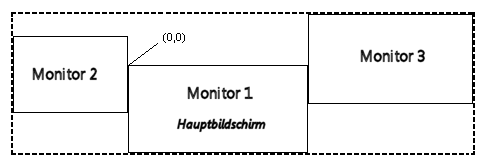 Fig. 1: Virtual screen
The virtual screen is determined by the boundaries and arrangement of all monitors. The main screen always has the coordinate origin (0,0). This was specified by Microsoft for compatibility reasons for existing applications.
Based on the monitor arrangement in Fig. 1, monitor 2 has a negative coordinate origin. The upper left corner of a window displayed on monitor 2 would therefore have negative coordinates.
The individual screens do not all have to have the same color depth, although this is not recommended. In any case, conzept 16 only takes the main screen into account when it comes to color depth.
Screen areas
Windows distinguishes between screen area and work area. The screen area is the entire display area available on a screen. The work area is the part that is not occupied by permanently installed windows (such as the Windows task bar).
Transition
In general, a conzept 16 application does not need to be adapted for operation with multiple monitors. However, if you want one window to always be displayed on the primary screen and a second window to always be displayed on the secondary screen, you will need to determine the coordinates for the second screen. Once you have these, you can position the window by setting the wpArea property.
The conzept 16 developer can use the properties wpAreaScreen and wpAreaWork to determine the rectangle of the screen and work area for the main screen. Starting with version 5.7.05c, it is also possible to query the additional monitors that are available. For this purpose, the properties have been extended to include the optional specification of a screen number.
// work area of the second monitor
tWorkRect2 # _App->wpAreaWork(1);

// screen area of the second monitor
tScreenRect2 # _App->wpAreaScreen(1);
The number in brackets is a sequential number (≥0) that identifies the monitor. The number “0” always corresponds to the main screen, as does the call without specifying a number.
Would you like some more?
Based on these properties, further information such as the number of screens and the rectangle of the virtual screen can be determined. The Monitor module encapsulates the information according to the principle of modular programming.
// Open interface
Monitor:Open();

// Output work areas
DbgTrace('Monitor Count: ' + CnvAI(Monitor:GetCount()));
DbgTrace('=== Work Areas ===');

for tMonitor # 1 loop inc(tMonitor)
  while (tMonitor <= Monitor:GetCount())
{
  Monitor:GetMonitorText(tMonitor,var tText,true);
  DbgTrace(tText);
}

// Output screen areas
DbgTrace('=== Screen Areas ===');

for tMonitor # 1 loop inc(tMonitor)
  while (tMonitor <= Monitor:GetCount())
{
  Monitor:GetMonitorText(tMonitor,var tText,false);
  DbgTrace(tText);
}

// Close interface
Monitor:Close();
The above program outputs the number of available monitors and the individual rectangles of each monitor in the debugger.
MonitorDump:main  25  Monitor Count: 2
MonitorDump:main  26  === Work Areas ===
MonitorDump:main  31  Monitor 1: (0,0) - (1.280,994) - PRIMARY
MonitorDump:main  31  Monitor 2: (1.280,0) - (2.560,1.024)
MonitorDump:main  35  === Screen Areas ===
MonitorDump:main  40  Monitor 1: (0,0) - (1.280,1.024) - PRIMARY
MonitorDump:main  40  Monitor 2: (1.280,0) - (2.560,1.024)
This shows that there are two screens, both of which have the same dimensions. The word PRIMARY indicates that this is the main screen. The workspace of the main screen contains the taskbar at the bottom of the screen (you’ll have to take my word for that). For this reason, the height of the workspace is slightly smaller than the total height (994 instead of 1024). SIt is also nice to see that ‘Monitor 2’ has the coordinate origin (1280,0). ‘Monitor 1’ starts at (0,0).
With the ‘Monitor’ module and the ‘MonitorDump’ procedure (at the end of the article), you can test the new features to your heart’s content. Ideally, of course, with multiple monitors…